Because of where I work and what I do, I'm on the road. A lot. I have a main office in one county, and a satellite office in another. Additionally, our office covers seven counties and I often travel to an eighth for meetings and occasionally court appearances. All of this traveling can leave me sometimes running behind.
A smart watch and IFTTT can easily and efficiently help your secretary or assistant know when you are heading back to the office. In IFTTT, create a new recipe where the trigger or if statement is tapping a button on your android smart watch.
The then statement will be up to you. You can choose to send a text to your legal assistant if they prefer that method of receiving communications from you. Alternatively, you could choose to send her an email from your GMail account.
If you choose the email option, by default it will send a picture from Google maps showing your location as well as a link to Google maps. You can then add in a message at the top or on the subject line saying "Heading back to the office" or what not. Thus a simple tap of the button let's your office know where you are and they can have a decent idea of when to expect you back in.
Is it kind of nerdy? Probably. Do I care? Not one bit. I use this method to text my wife most nights to let her know I'm leaving the office.

A blawg devoted to providing practical tech tips to lawyers
Showing posts with label IFTTT. Show all posts
Showing posts with label IFTTT. Show all posts
Monday, November 3, 2014

Friday, September 19, 2014
IFTTT for Attorneys: Get a Notification of Additions to Your Google Calendar
More and more people are using Google calendars, and with good reason. The ability to share calendars and allow others to edit your calendar is wonderful. For example, I might be using Google calendars and allow my assistant to schedule meetings and hearings for me. From my point of view, I encourage our assistants to do this; why should the Court wait for me to get back in the office to schedule a hearing?
I think it would be nice if I got a little note that something was added to my calendar. Not that I'll necessarily remember it, but it's nice to get a little heads up. But, I don't want my assistant to have to remember to email every time she does this. IFTTT can help.
To start with, you'll need to activate the Google Calendar channel. This can be accomplished by going into the IFTTT menu, selecting channels, and activating Google Calendar. Edit the settings of this channel to identify the calendar you want tracked.
Next, create a new recipe and for the triggering event or if statement of your IFTTT recipe, choose "Google Calendar" and "Any new event added". From the action or then statement of your IFTTT recipe choose "Android Notifications" and "Send a notification".
Now, any time someone adds a new event to your Google calendar, you will receive a notification in your status bar about it.
I think it would be nice if I got a little note that something was added to my calendar. Not that I'll necessarily remember it, but it's nice to get a little heads up. But, I don't want my assistant to have to remember to email every time she does this. IFTTT can help.
To start with, you'll need to activate the Google Calendar channel. This can be accomplished by going into the IFTTT menu, selecting channels, and activating Google Calendar. Edit the settings of this channel to identify the calendar you want tracked.
Next, create a new recipe and for the triggering event or if statement of your IFTTT recipe, choose "Google Calendar" and "Any new event added". From the action or then statement of your IFTTT recipe choose "Android Notifications" and "Send a notification".
Now, any time someone adds a new event to your Google calendar, you will receive a notification in your status bar about it.
Friday, August 29, 2014
IFTTT FOR ATTORNEYS: CREATE A PHONE LOG
IFTTT is a mobile app that will automatically do something in one app if something else happens in another app. For example, when this post gets published, IFTTT will automatically create a tweet in twitter with the post title and a link for me. All without me ever actually opening Twitter.
IFTTT isn't limited to Twitter and Blogger. In fact, there are dozens of services that IFTTT can cause to work together. I tend to think of IFTTT as a scaled down, but free and easier to learn version of Tasker. I use them both, each for different tasks.
IFTTT is useful in general, but I think there are some recipes that can be of particular use to attorneys. As I come across them, I'll write about them here.
Today's tip is how to use IFTTT to keep track of your cell phone calls by creating and keeping an automatic call log in Google Drive. This may be of more use to solo and small firm practitioners particularly, but anyone that uses a cell phone for client communications can benefit.
In IFTTT, you will need to make sure that you enable the Google Drive and Android Phone channels. Next, create a new recipe and click on the "if" statement.

Next, choose "Android Phone Call" from the list along the top. Within that, click on the plus sign next to "Any phone call placed".

Then, click on the plus for the "Then" statement.

Then, scroll and find Google Drive. Click on it, and then click on "Add row to speadsheet".
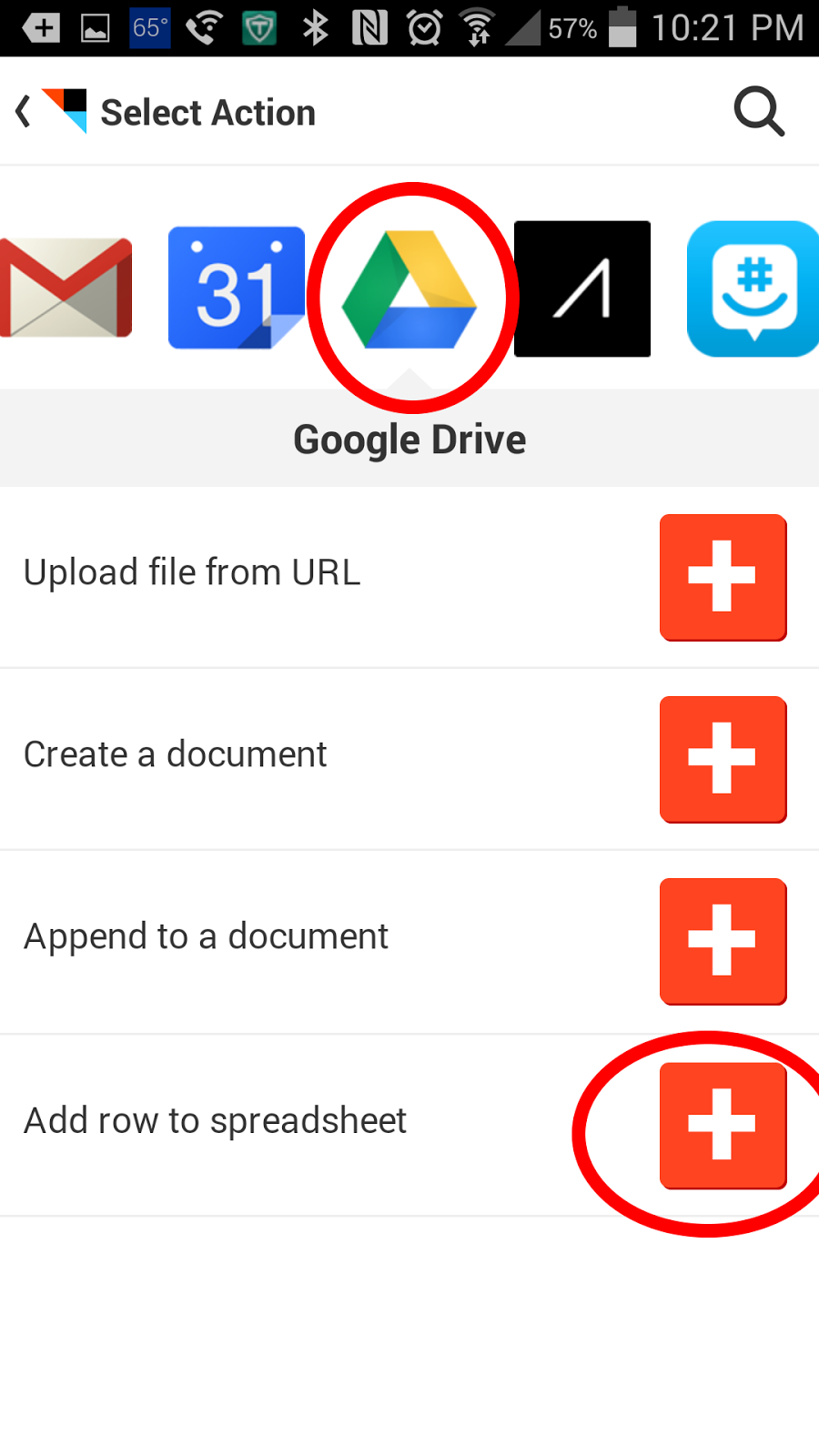
What this will do is create a new spreadsheet named "Phone call" in your Google Drive account in a folder called IFTTT. It will have four columns that state when the phone call was made, what number was called, who was called, and how long it lasted. You can tweak some of this in the edit recipe menu.

How is this useful for an attorney? If you make several phone calls on the road, you can quickly enter your time into your billing or case management software by referencing a single spreadsheet. The only thing you would have to do is remember what the substance of the call was. This is much easier than going through your phone's call log an into each entry to see when the call occurred and how long it lasted for billing purposes.
Subscribe to:
Posts (Atom)