Two months ago I wrote about how Chrome Canary had made switching users easier by including a drop down menu in the upper right part of the screen. At the time, this was a huge improvement. Prior to this, changing users meant a longer process of signing out and signing back in. If you have a work and personal account and use one computer, this could be tedious.
In August, Chrome Canary introduced the drop-down box to assist in switching.
Clicking on this allowed you to choose "switch person" where you could choose which user to log in with. I always found there to be a large amount of lag in this opening, but it was still easier and quicker than the old method. This got added to the Beta version of Chrome in early September or late August I believe.
Today, however, when I fired up Chrome Canary, my little friend in the top right was gone. Instead, there was a picture of me in the top left.
When I clicked on it, it quickly brought up a drop-down with both my personal and work accounts. Clicking on my work account instantly opened a new session of Chrome with all of my work setup. This new method looks cleaner than the other, involves fewer steps, and works even quicker.
To put is simply, this newest change is wonderful, and again, I hope that Google makes it part of the stable version as it will greatly improve the usability of Chrome for those with work and personal accounts.
Showing posts with label Chrome. Show all posts
Tuesday, October 14, 2014
Thursday, September 11, 2014
Chrome Canary Lets You Check Out the Chrome OS in Windows 7
Recently, I noticed a new option in my Chrome Canary menu on my desktop running Windows 7: Relaunch in Chrome OS Mode. Clicking it does exactly what you would expect. It shuts down your current version of Chrome and relaunches but as if you are using the Chrome Operating System. This is still listed as experimental and is not yet in Chrome Beta let alone Chrome stable.
So, why would anyone be interested in this feature? Well, if you have a Chromebook, you could get your Chromebook experience and sync while at work or using Windows 7.
Additionally, if you're interested in getting a Chromebook but not sure about using Chrome OS, this gives you a chance to test drive it for a while before making up your mind. If you were looking to set up a decent solo office on the cheap, this could be a possibility.
So, why would anyone be interested in this feature? Well, if you have a Chromebook, you could get your Chromebook experience and sync while at work or using Windows 7.
Additionally, if you're interested in getting a Chromebook but not sure about using Chrome OS, this gives you a chance to test drive it for a while before making up your mind. If you were looking to set up a decent solo office on the cheap, this could be a possibility.
Tuesday, September 2, 2014
CHROME'S USER DROP-DOWN IS NOW AVAILABLE IN CHROME BETA
Not that long ago I mentioned that Chrome Canary had added a drop down that would allow you to easily switch users in Chrome. Not every feature in the Canary version makes it to Beta and on to the full release version. However, I'm glad to see that this feature is now in the Beta version of Chrome.
This is such a useful feature, I can't imagine Google not incorporating it into the full release version. If you've been hesitant to try Chrome Canary, you should at least give Chrome Beta a try. It is more stable than Canary, and you still get new features quicker.
Just a reminder of why attorneys should like this: it makes it much easier to switch between your personal Google account and your work Google account.
Monday, September 1, 2014
YOU SHOULD GET PUSHBULLET
If you've been following this blog at all, it will come as no surprise that I'm a bit of a tech nerd. In my office, I've got two computer monitors, my linux box, the tablet, phone, and smart watch. I've got screens everywhere it seems.
Getting all of these screens and devices to play together without flipping from one device to another is critical. Pushbullet is a wonderful app for the phone, tablet, and extension for Google Chrome that helps tremendously.
After installing the app in all three locations, I can quickly and easily move from one device to the other. Let's say I've taken a picture on my phone that I want to see on my computer. I can send it from my phone to the computer using Pushbullet wirelessly.
I can also enabling a universal clipboard. So, if I copy something on my phone, when I go to my tablet and hit paste, it will paste whatever I had just copied on my phone.
The thing I have been enjoying the most is the ability to receive phone notifications on my desktop. They pop up in the lower right corner, somewhat similar to a notification you receive from Outlook when you receive email.
Why is this so great? When someone sends me a text, I can simply reply to the text using my computer. No need to get out the phone or use the watch. I can quickly respond without changing devices.
I highly recommend this absolutely free app.
Getting all of these screens and devices to play together without flipping from one device to another is critical. Pushbullet is a wonderful app for the phone, tablet, and extension for Google Chrome that helps tremendously.
After installing the app in all three locations, I can quickly and easily move from one device to the other. Let's say I've taken a picture on my phone that I want to see on my computer. I can send it from my phone to the computer using Pushbullet wirelessly.
I can also enabling a universal clipboard. So, if I copy something on my phone, when I go to my tablet and hit paste, it will paste whatever I had just copied on my phone.
The thing I have been enjoying the most is the ability to receive phone notifications on my desktop. They pop up in the lower right corner, somewhat similar to a notification you receive from Outlook when you receive email.
Why is this so great? When someone sends me a text, I can simply reply to the text using my computer. No need to get out the phone or use the watch. I can quickly respond without changing devices.
I highly recommend this absolutely free app.
Thursday, August 14, 2014
SWITCHING USER ACCOUNTS IS NOW EASIER IN CHROME CANARY
In case you're not aware, there are multiple versions of the Chrome browser available for use on your desktop or laptop. There is the completely stable version of Chrome, a Beta version that I've found to be very stable, and the Canary version, which you can think of as the Alpha version.
The advantage to using the Beta or Canary version is that you get some of the upcoming features in Chrome early and can provide feedback on their development. The trade off is that sometimes the features aren't fully debugged, and so, the browser might not always be reliable. There have been updates with Chrome Canary that I can hardly use it and have to wait for the next update.
However, I like to see what is coming and trying out stuff early. And the thing I noticed for the first time today (though it could have happened a few days ago and I never saw it) was the addition of a button in the top right that is supposed to make switching users easier.
The advantage to using the Beta or Canary version is that you get some of the upcoming features in Chrome early and can provide feedback on their development. The trade off is that sometimes the features aren't fully debugged, and so, the browser might not always be reliable. There have been updates with Chrome Canary that I can hardly use it and have to wait for the next update.
However, I like to see what is coming and trying out stuff early. And the thing I noticed for the first time today (though it could have happened a few days ago and I never saw it) was the addition of a button in the top right that is supposed to make switching users easier.
When you click on it, you can add your other users' accounts, or perhaps you can have a work and personal account, which is why I'm so excited about this.
When you switch to the other user, it then opens a new window with the other user running, thus allowing you to have multiple instances of Chrome running but with different users. And lest you get confused as to which account is in which window, the task bar will let you see the difference.
At any rate, for those who have a work and personal gGoogle account, or where multiple users are using the same computer, this is a welcome addition to Chrome. Let's hope it makes it to the Beta and Release versions soon.
Tuesday, April 15, 2014
SPEND TOO MUCH TIME BROWSING WEBSITES INSTEAD OF WORKING? TRY CHROME NANNY
Let's face it, as attorneys, we tend to spend a fair amount of time at the computer either drafting emails, letters, briefs, pleadings, or doing research of one sort or another. It's very possible you already have a browser open to do whatever task you are working on. It becomes very easy to decide to check your bank account, or your stocks, or the news, or myriad other distractions. This can quickly turn in to a habit if left unchecked.
One way of checking this it is to install an internet nanny. I have found Nanny for Google Chrome to be particularly effective. It is an extension that you can customize to lock down your browser in a number of ways.
As an example, I have a configuration that blocks the news websites I like to visit during the work day except during the time I normally take lunch. If I try to visit one of those sites, I am taken to a screen that reminds me that I am supposed to be working.
I have also set it up to allow me to bypass this block if I wish. You can make the process for doing so as complicated or easy as you like. Once locked down, you can set how hard it is to change the blocking. I've chosen the 32 character option, in which I have to put in 32 characters exactly as shown before I can unblock the site.
For me, this is annoying enough to make me ask, "Do I really have to visit this site, now?" If you find that is too easy, you could always make it 128 characters long.
Would I be frustrated - read really, really, really mad - if my employer even thought about trying to force this on me? You bet. I'd probably fight it tooth and nail.
However, I find that I am actually much more productive when I foist it upon myself. I find that I only have to have it on a while before I get trained not to wander. Over time, I know I back slide, and so, turning it on again is helpful to get back in the habit. What can I say, I'm one of those millenials that can't stay on task sometimes.
This isn't something for everyone, but if you find yourself wandering too much while working (or trying to work), it might be worth giving this a try.
One way of checking this it is to install an internet nanny. I have found Nanny for Google Chrome to be particularly effective. It is an extension that you can customize to lock down your browser in a number of ways.
As an example, I have a configuration that blocks the news websites I like to visit during the work day except during the time I normally take lunch. If I try to visit one of those sites, I am taken to a screen that reminds me that I am supposed to be working.
I have also set it up to allow me to bypass this block if I wish. You can make the process for doing so as complicated or easy as you like. Once locked down, you can set how hard it is to change the blocking. I've chosen the 32 character option, in which I have to put in 32 characters exactly as shown before I can unblock the site.
For me, this is annoying enough to make me ask, "Do I really have to visit this site, now?" If you find that is too easy, you could always make it 128 characters long.
Would I be frustrated - read really, really, really mad - if my employer even thought about trying to force this on me? You bet. I'd probably fight it tooth and nail.
However, I find that I am actually much more productive when I foist it upon myself. I find that I only have to have it on a while before I get trained not to wander. Over time, I know I back slide, and so, turning it on again is helpful to get back in the habit. What can I say, I'm one of those millenials that can't stay on task sometimes.
This isn't something for everyone, but if you find yourself wandering too much while working (or trying to work), it might be worth giving this a try.
Tuesday, February 18, 2014
USE YOUR CHROME BROWSER TO SET A TIMER
Lately, I've been trying to set aside set periods of time to devote to tasks. For example, I might only want to spend 10 minutes reading blog posts on Feedly. To keep track of time, I could get a kitchen timer or pull out my phone. Or, I could just open a tab up in my chrome browser and in the address bar, type "Set a timer for 10 minutes". This will open up a countdown timer, and as long as I don't close the page, will sound an alarm after 10 minutes.
Not earth shattering stuff, but sometimes these simple things are very convenient.
Friday, January 24, 2014
GET INTERNET EXPLORER FEATURES IN CHROME OR FIREFOX WITH IETAB
There are some websites that seem to be optimized for Internet Explorer. While you might love using Google Chrome or Mozilla's Firefox, when it comes to those websites, they simply either don't look good in Chrome, or worse, they don't function properly. For me, WestlawNext, SharePoint, and several court docket websites lose functionality or don't function at all in Chrome and Firefox. In such cases, you may end up using IE for some websites and Chrome or Firefox for others. This can lead to constantly switching browsers.
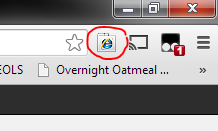
To deal with this problem, I use IETab. IETab is available for both Chrome and Firefox. Once you install IETab, a button will appear to the right of your browser's address bar.
Clicking on it will load essentially turn your current browser into IE, and load the page as if it was being opened in IE. This will give you all the functionality from IE without the need to actually use it or switch back and forth between browsers.
Moreover, by right clicking on the button and choosing options, you have the ability to designate websites that will automatically open in IETab without you having to take any further steps. So if there is a site you visit frequently in IE, add it to the Auto URL box and it will always open in IETab for you.
Stop switching between browsers. Get IETab.
To deal with this problem, I use IETab. IETab is available for both Chrome and Firefox. Once you install IETab, a button will appear to the right of your browser's address bar.
Clicking on it will load essentially turn your current browser into IE, and load the page as if it was being opened in IE. This will give you all the functionality from IE without the need to actually use it or switch back and forth between browsers.
Moreover, by right clicking on the button and choosing options, you have the ability to designate websites that will automatically open in IETab without you having to take any further steps. So if there is a site you visit frequently in IE, add it to the Auto URL box and it will always open in IETab for you.
Stop switching between browsers. Get IETab.
Thursday, January 16, 2014
GOOGLE NOW FINALLY ON THE DESKTOP... SORTA
I've previously discussed how much I like Google Now on my smart phone. Having useful information contained in the Now cards at my fingertips is something I like. And I don't mind that it knows all there is to know about me. I like it popping up notifications that packages have been shipped and reminding me of hearings.
Up until now, it has only been available for the phone; you could not get your cards on the desktop. As of today, those using Chrome Canary can see their Google Now cards on their desktops. Ars Technica has instructions for turning them on here.
It might still be a while before this feature comes to the stable version of Chrome (Canary is billed as the developer/early adopter version and "can be prone to breakage"). This is a step I've been waiting for for a while now, and I'm excited for it to make it to all versions of Chrome.
Up until now, it has only been available for the phone; you could not get your cards on the desktop. As of today, those using Chrome Canary can see their Google Now cards on their desktops. Ars Technica has instructions for turning them on here.
It might still be a while before this feature comes to the stable version of Chrome (Canary is billed as the developer/early adopter version and "can be prone to breakage"). This is a step I've been waiting for for a while now, and I'm excited for it to make it to all versions of Chrome.
Monday, January 6, 2014
GOOGLE VOICE SEARCH ON THE DESKTOP
I've been using Google Now and Google's voice search on my phone for quite some time. However, I've never really used it much on the desktop. Since I've been dictating more using either Dragon Dictate or Windows Speech Recognition, I find that I have my headset on more often than not while I'm at my desk. Thus, it is much simpler for me to actually use Google's voice search on the desktop when I'm using Chrome as my browser.
There are a number of ways to start a Google Voice search. All of them require that you be on a Google search page. Since I'm always using Chrome, I usually just have to open a new tab which takes me to a page with a Google search bar on it.
From there, you can click on the microphone on the right side of the search bar and then speak your Google search.
There are a number of ways to start a Google Voice search. All of them require that you be on a Google search page. Since I'm always using Chrome, I usually just have to open a new tab which takes me to a page with a Google search bar on it.
From there, you can click on the microphone on the right side of the search bar and then speak your Google search.
I prefer just to use the keyboard shortcut in chrome to start a voice search: ctrl+shift+period. This automatically starts the search.
Lastly, Google has released an extension called Google Voice Search Hotword (Beta). It is supposed to allow you to just say "Ok, Google" like you do on your phone and open the voice search. However, I have not been able to get it to work on my computer, so I am unable to weigh in on how well it actually works.
Using your voice to control the computer is not yet for everyone, but it is starting to come along. Features like Google Voice Search are likely the beginning phases of this technology.
Wednesday, September 11, 2013
WHY I PREFER THE CHROME WEB BROWSER
In thinking back, I think the first web browser I used was Netscape. That soon gave way to Internet Explorer, which was what I used until early 2005 when I switched to Mozilla's Firefox. At the time, Firefox was the lighter, had fewer security vulnerabilities, and had tabbed browsing. Firefox was simple. It knew it was a browser and didn't try to let a bunch of features creep in.
For the past couple of years though, I've been using Google Chrome as my browser of choice. It allows for endless customization if you like, but it is ready to go out of the box. Additionally, I like that I can log in to Chrome, and it will important all of my settings to whatever computer I may be sitting at. This includes all of my bookmarks.
This cross computer functionality is also cross platform: everything on my computer's version of chrome shows up on my phone's chrome browser as well. In fact, if I have a site pulled up on my computer that I would like to view on my phone, I can just go to my phone's browser and it has the link waiting for me. A simple tap opens up whatever tab I may have open on any other computer without having to retype the link.
Lastly, Google Chrome's integration with Google Now is great. Using my computer, I was looking up information about the Social Security office I was going to be visiting the morning before the social security hearing I had that afternoon. Google Now took the address off of the computer's tab and had my phone tell me how long it would take to get there given current traffic patterns and asked if I wanted to start the navigation app.
In short, Chrome strives to be your one-stop-shop for accessing information and organizing your life, and I think it is succeeding at that. As an attorney, anything to help do that gets a gold star in my book.
Subscribe to:
Posts (Atom)