A little while ago, Microsoft updated its Android OneNote app to allow users to take Handwritten notes. I wanted to play around with it a bit before coming to any conclusions. Having done so, I think OneNote is now one of the leaders if not the leader when it comes to organization.
If you're not familiar with OneNote, it is similar to Evernote in that it allows you to create Notebooks with web clippings, notes, etc. If you have a Onedrive account with Microsoft (free/paid), you can store your notebooks in the web and access them across multiple platforms.
For example, I have various projects that I am working on. I have a OneNote notebook for each project. Inside the notebook I now keep my handwritten notes (either scanned in or, now with the update, taken on my tablet). I can then look at those notes on the computer and add in other notes, annotate PDFs, copy in articles, and much more.
For me, the ability to hand write notes on my tablet directly in to OneNote is an unbelievable gain. It is a shame more people aren't familiar with OneNote and what it offers. If you're in that boat, I highly encourage you to give it a try.

A blawg devoted to providing practical tech tips to lawyers
Wednesday, September 10, 2014

Tuesday, September 9, 2014
Pomodroido - The Perfect App for Pomodoro Fans
As attorneys, it seems that it is all too easy to get suckered in to thinking we are the world's greatest multi-taskers. We are undoubtedly busy, and we are often trying to juggle multiple projects. While working on one project, we get sidetracked by emails, and phone calls, and our smartphones. And all too often, this "multitasking" simply makes us less efficient.
A mindful approach to our work where we devote out entire attention to a task is much more efficient. Plus. the end product will be better.
When I have tasks that need done, especially larger ones such as brief writing, I often will use the Pomodoro method. I don't profess to be an expert on the technique, but essentially, you devote all of your energy and thoughts on your task for 25 minutes, then take a 5 minute break. Repeat. Take a longer break every 4 rounds.
Yes, it is deceptively simple. Yet, if you take it seriously, those 25 minutes can result in a lot being accomplished.
This is where Pomodroido comes in. Pomodroido, like the method it is named for, is a deceptively simple app. It measures out your Pomodoro sessions and acts as your timer for both the 25 and 5 minute period as well as your long break. It even has the Kitchen timer sound that you can have on if you find that noise helpful, which I do.
So, if you want the Pomodoro method without the red tomato kitchen timer, give Pomodroido a try.
Friday, September 5, 2014
Tasker for Attorneys - Automatically Silence Your Phone at Court
Previously, we showed how you could use Tasker to keep your phone unlocked when you know it is in safe hands. Today, let's see how Tasker can be used to keep you from getting in trouble at Court.
One of judges' biggest peeves seems to be cell phones going off during a hearing. An easy way to get on the judge's wrong side is to forget to silence your phone. So, I usually silence my phone when going in to the courthouse.
That is, at least when I remember to do so. I don't always remember. It caused me problems on an occasion.
Tasker can help with this problem. You can tell Tasker to silence your phone when you enter a courthouse so you no longer have to worry if you forget to do it yourself.
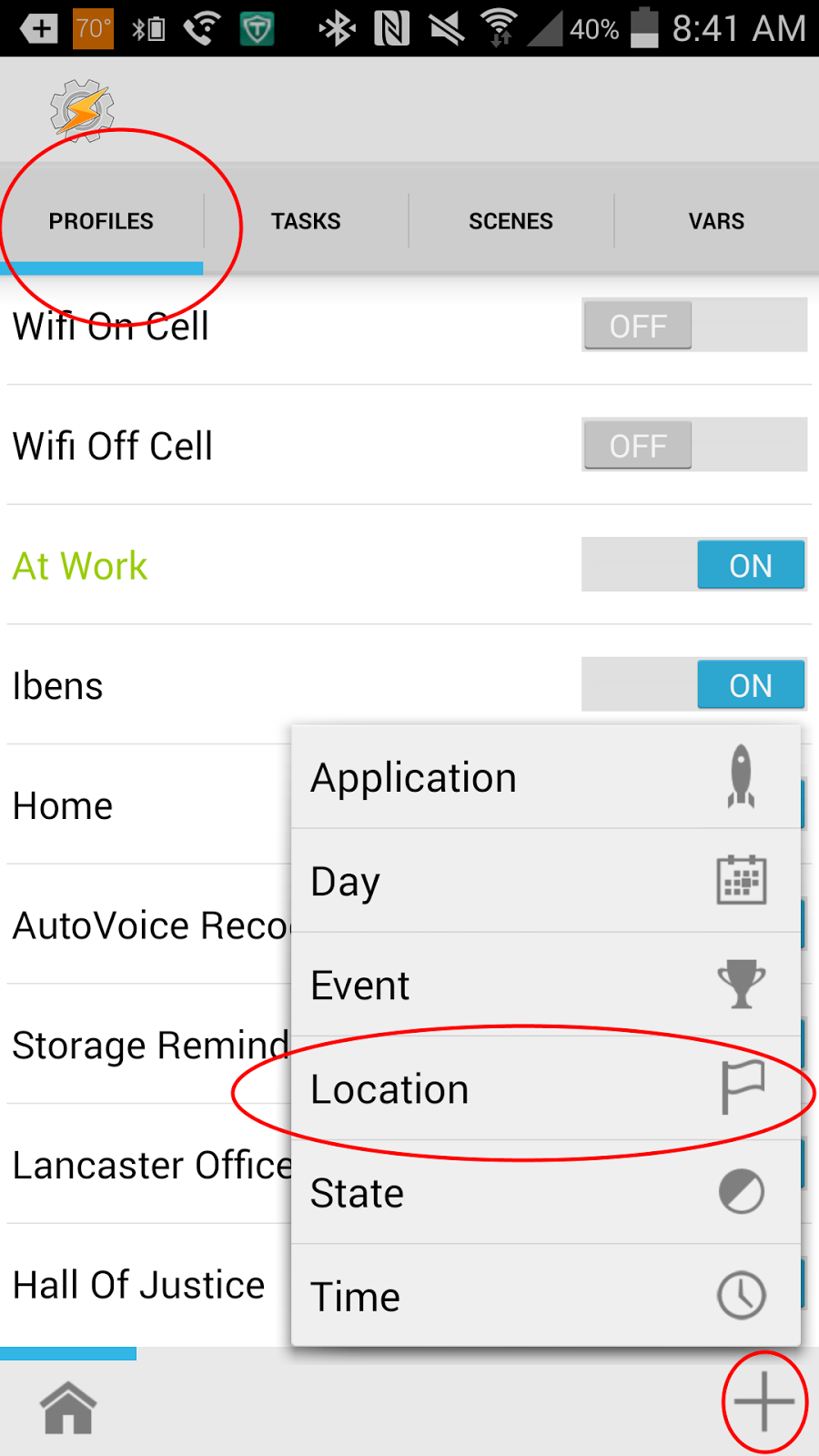
To do this, open Tasker, go to the profile tab, click the + in the lower right, and choose Location.
When you do this, you will then scroll to the top and choose "+ New Location". This will then bring up a map. There, find the location of the Courthouse you want to have your phone silenced at. Then, long click in the middle of the Courthouse. I typically set the radius to either 30m or 50m. Once you've done this, you should have a flag over your court with a yellow circle. This yellow circle shows an area that, if you set foot in it, your phone will trigger.
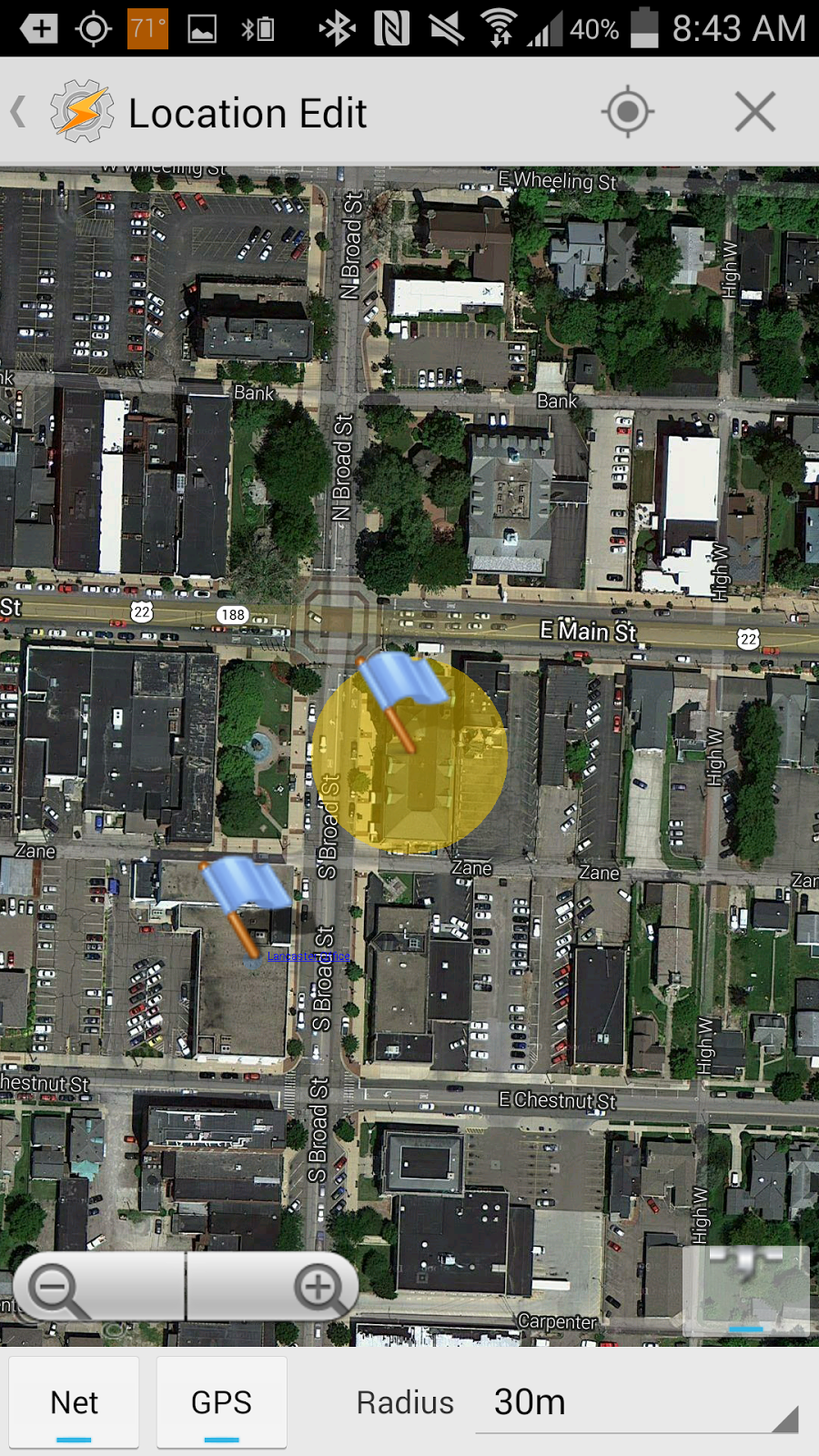
Once you have it set up how you like it, tap on "Location Edit" in the top left. It will ask you to name your location. I typically just give it the name of the Court. It will then ask you what task to assign the profile. Choose new task and name the task, if you like.
Next, click on the + at the bottom of the screen to add an action. On the next screen, choose the Audio button.
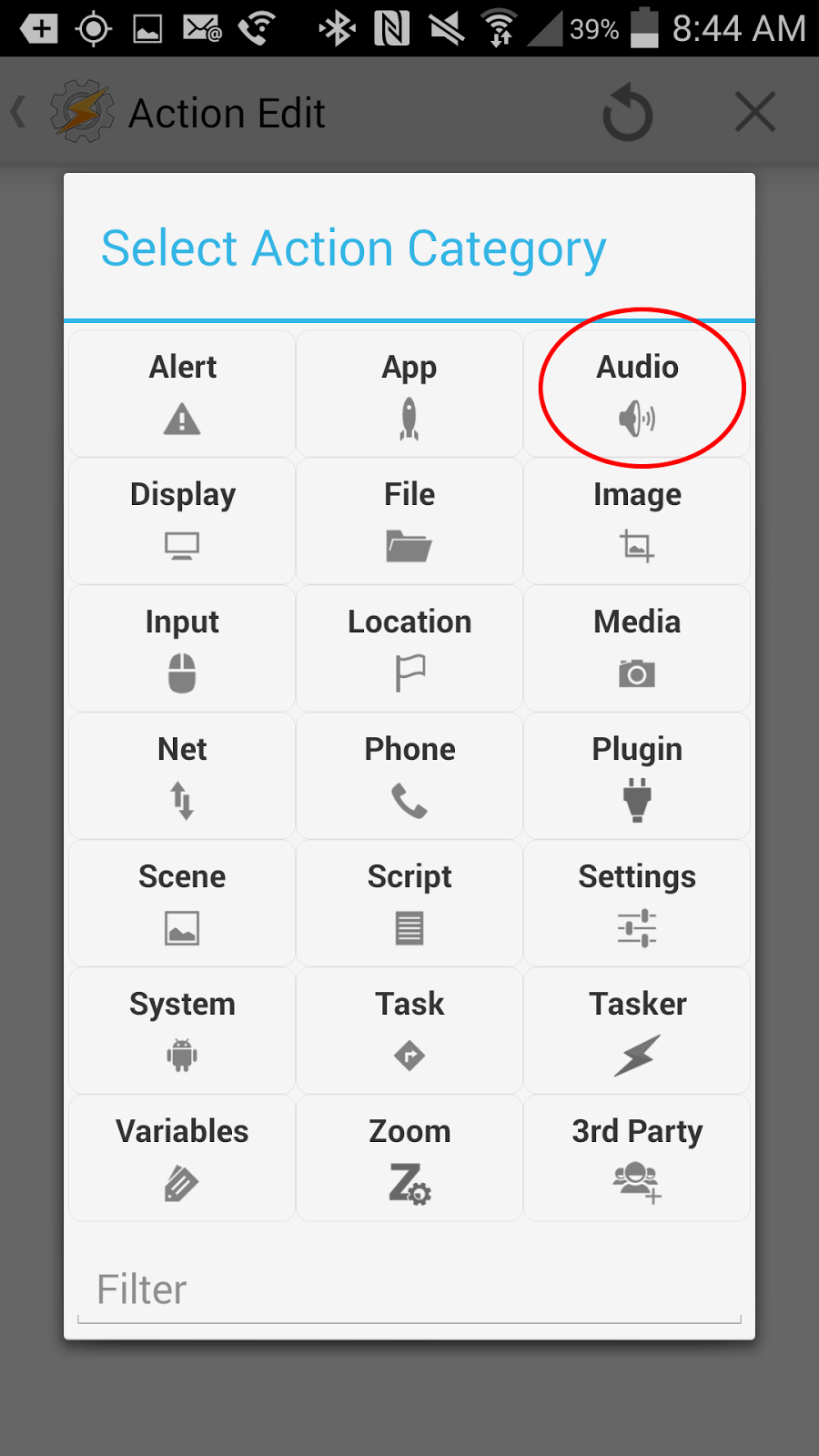
This will bring up a number of options. In the list of options that pop up, choose "Silent Mode".

On the next screen, set the Mode to On.

Tap on Action Edit in the top left of this screen and Task Edit in the top left on the next screen. And that's it. Now, when you enter the courthouse or the area around it, your phone will automatically go into silence mode. Just make sure you keep your GPS on as it might not work otherwise.
One of judges' biggest peeves seems to be cell phones going off during a hearing. An easy way to get on the judge's wrong side is to forget to silence your phone. So, I usually silence my phone when going in to the courthouse.
That is, at least when I remember to do so. I don't always remember. It caused me problems on an occasion.
Tasker can help with this problem. You can tell Tasker to silence your phone when you enter a courthouse so you no longer have to worry if you forget to do it yourself.
To do this, open Tasker, go to the profile tab, click the + in the lower right, and choose Location.
When you do this, you will then scroll to the top and choose "+ New Location". This will then bring up a map. There, find the location of the Courthouse you want to have your phone silenced at. Then, long click in the middle of the Courthouse. I typically set the radius to either 30m or 50m. Once you've done this, you should have a flag over your court with a yellow circle. This yellow circle shows an area that, if you set foot in it, your phone will trigger.
Once you have it set up how you like it, tap on "Location Edit" in the top left. It will ask you to name your location. I typically just give it the name of the Court. It will then ask you what task to assign the profile. Choose new task and name the task, if you like.
Next, click on the + at the bottom of the screen to add an action. On the next screen, choose the Audio button.
This will bring up a number of options. In the list of options that pop up, choose "Silent Mode".
On the next screen, set the Mode to On.
Tap on Action Edit in the top left of this screen and Task Edit in the top left on the next screen. And that's it. Now, when you enter the courthouse or the area around it, your phone will automatically go into silence mode. Just make sure you keep your GPS on as it might not work otherwise.
Thursday, September 4, 2014
Free Course for Learning Python
I'm a big fan of Coursera and its free, online courses. I did the Android programming course a while back and learned a lot. Starting September 15, Coursera will be offering a free course on learning the Python computer language. It is designed for those without computer programming experience. So, even if you have no programming background, you shouldn't feel completely adrift. And if you don't like it, you're not out any money.
Easily Create Linked Citations in Your Emails and Research Memos
When you are trading emails with co-counsel and discussing the law, the citations to statutes and cases can start piling up. And when you deal with research memoranda, the number of these citations simply balloons. Of course, to check any of these, you have to copy the citation into Google or look it up. It would be nice if they could all be hyperlinks that took you exactly where you wanted to go.
Microsoft makes this relatively easy. And, it allows you to do it without having to include the entire URL in the body of the text, which means everything is still human readable.
So, let's use a simple example. Suppose I was to send a colleague an email with the line "The definition of who is a tenant can be found in Ohio Rev. Code s. 1923.02, which defines it as follows:". It would be nice if I could make the words "Ohio Rev. Code s. 1923.01" be a link that he can click and take him directly to http://codes.ohio.gov/orc/1923.02, which is where this statute can be found.
To do this, go ahead and type your whole sentence into your email or into your Word document. Next, highlight the text you want to turn into a link. Next, hit Ctrl + k, which will bring up the following window:

All you have to do is put the URL in the Address: box, which I've circled. You can either type it in directly, or, you can copy it from your web browser and just paste it in. Then, hit OK, and you now have a link right in your email or Word document. This makes it easier to use the email or document in the future when you want to check out the citation.
Microsoft makes this relatively easy. And, it allows you to do it without having to include the entire URL in the body of the text, which means everything is still human readable.
So, let's use a simple example. Suppose I was to send a colleague an email with the line "The definition of who is a tenant can be found in Ohio Rev. Code s. 1923.02, which defines it as follows:". It would be nice if I could make the words "Ohio Rev. Code s. 1923.01" be a link that he can click and take him directly to http://codes.ohio.gov/orc/1923.02, which is where this statute can be found.
To do this, go ahead and type your whole sentence into your email or into your Word document. Next, highlight the text you want to turn into a link. Next, hit Ctrl + k, which will bring up the following window:
All you have to do is put the URL in the Address: box, which I've circled. You can either type it in directly, or, you can copy it from your web browser and just paste it in. Then, hit OK, and you now have a link right in your email or Word document. This makes it easier to use the email or document in the future when you want to check out the citation.
Tuesday, September 2, 2014
CHROME'S USER DROP-DOWN IS NOW AVAILABLE IN CHROME BETA
Not that long ago I mentioned that Chrome Canary had added a drop down that would allow you to easily switch users in Chrome. Not every feature in the Canary version makes it to Beta and on to the full release version. However, I'm glad to see that this feature is now in the Beta version of Chrome.
This is such a useful feature, I can't imagine Google not incorporating it into the full release version. If you've been hesitant to try Chrome Canary, you should at least give Chrome Beta a try. It is more stable than Canary, and you still get new features quicker.
Just a reminder of why attorneys should like this: it makes it much easier to switch between your personal Google account and your work Google account.
Monday, September 1, 2014
YOU SHOULD GET PUSHBULLET
If you've been following this blog at all, it will come as no surprise that I'm a bit of a tech nerd. In my office, I've got two computer monitors, my linux box, the tablet, phone, and smart watch. I've got screens everywhere it seems.
Getting all of these screens and devices to play together without flipping from one device to another is critical. Pushbullet is a wonderful app for the phone, tablet, and extension for Google Chrome that helps tremendously.
After installing the app in all three locations, I can quickly and easily move from one device to the other. Let's say I've taken a picture on my phone that I want to see on my computer. I can send it from my phone to the computer using Pushbullet wirelessly.
I can also enabling a universal clipboard. So, if I copy something on my phone, when I go to my tablet and hit paste, it will paste whatever I had just copied on my phone.
The thing I have been enjoying the most is the ability to receive phone notifications on my desktop. They pop up in the lower right corner, somewhat similar to a notification you receive from Outlook when you receive email.
Why is this so great? When someone sends me a text, I can simply reply to the text using my computer. No need to get out the phone or use the watch. I can quickly respond without changing devices.
I highly recommend this absolutely free app.
Getting all of these screens and devices to play together without flipping from one device to another is critical. Pushbullet is a wonderful app for the phone, tablet, and extension for Google Chrome that helps tremendously.
After installing the app in all three locations, I can quickly and easily move from one device to the other. Let's say I've taken a picture on my phone that I want to see on my computer. I can send it from my phone to the computer using Pushbullet wirelessly.
I can also enabling a universal clipboard. So, if I copy something on my phone, when I go to my tablet and hit paste, it will paste whatever I had just copied on my phone.
The thing I have been enjoying the most is the ability to receive phone notifications on my desktop. They pop up in the lower right corner, somewhat similar to a notification you receive from Outlook when you receive email.
Why is this so great? When someone sends me a text, I can simply reply to the text using my computer. No need to get out the phone or use the watch. I can quickly respond without changing devices.
I highly recommend this absolutely free app.
Subscribe to:
Posts (Atom)