If you use an Android device and are not following The Droid Lawyer, you're really missing out. Jeffrey Taylor always keeps you up to date on using Android in the practice of law. Today's post talked about Google Handwriting Input, which allows you to write instead of typing.
I've only had it on my phone for today, and I must say, I loved it. At first at least. I think that part of it was some nostalgia for my old palm pilot I had in college with its stylus and writing that way. However, on my phone, I think that using the keyboard is still quicker. I will say the handwriting recognition was much more accurate than I would have predicted. There just isn't enough room to get into a flow. And the ability to slide from letter to letter on the keyboard just feels easier. Maybe practice with the handwriting feature would change that, but I'm not sure I've got the patience now to find that out.
I hope to add it to the tablet and see how it works there. The extra room might be a key difference. For now though, as fun as it was to think back on my time at Ohio State, I think I'll be staying with my keyboard. I would encourage everyone to give it a try, because for some, it might be the way to go.

A blawg devoted to providing practical tech tips to lawyers
Showing posts with label Google. Show all posts
Showing posts with label Google. Show all posts
Thursday, April 16, 2015

Monday, October 27, 2014
Inbox for Gmail: Definitely Worth a Look
I've been a fan of Gmail for a while. Recently, Google launched their new email client, Inbox, in an invite only system for now. This invitation system is nothing new for Google to do. Yeah, it is probably unnecessary and it probably is, at least in part, a marketing gimmick. Yes, I'm probably being a Google apologist for not feeling some outrage at this system, yet, I just don't. What I will say, though, is that the Inbox app is slick.
I've only had a couple days to play with it, and I've spent most of those days moving boxes as we moved into our new home. However, there are a lot of changes in Inbox that I like.
First, the design. I'm normally more of a function over form person. However, I think that the look of Inbox is just wonderful. It showcases the material design of Android 5.0 wonderfully. It is also just easy to navigate and use.
In the current Gmail app, the only preset bundles are Social, Updates, Forum, and Promotions. Inbox adds additional useful bundles like travel, purchases, etc. This helps keep your email sorted. Yes, power users probably already have rules and filters set up to do this automatically. However, I think the way Inbox does it is great.
Additionally, Inbox makes it easy to see all of your reminders. I'm constantly using Google Now to set reminders. Prior to Inbox, it was somewhat cumbersome to see your reminders. Inbox has an option for that right in the navigation drawer for easy access.
Additionally, the ability to snooze email or pin it to the top so that you don't lose it in the inbox is helpful.
All in all, my preliminary thoughts on Inbox are that it I'm going to stop using the Gmail app and site altogether in favor of Inbox.
So, if you haven't done so yet, request an invite or get an invitation from someone who already has Inbox.
I've only had a couple days to play with it, and I've spent most of those days moving boxes as we moved into our new home. However, there are a lot of changes in Inbox that I like.
First, the design. I'm normally more of a function over form person. However, I think that the look of Inbox is just wonderful. It showcases the material design of Android 5.0 wonderfully. It is also just easy to navigate and use.
In the current Gmail app, the only preset bundles are Social, Updates, Forum, and Promotions. Inbox adds additional useful bundles like travel, purchases, etc. This helps keep your email sorted. Yes, power users probably already have rules and filters set up to do this automatically. However, I think the way Inbox does it is great.
Additionally, Inbox makes it easy to see all of your reminders. I'm constantly using Google Now to set reminders. Prior to Inbox, it was somewhat cumbersome to see your reminders. Inbox has an option for that right in the navigation drawer for easy access.
Additionally, the ability to snooze email or pin it to the top so that you don't lose it in the inbox is helpful.
All in all, my preliminary thoughts on Inbox are that it I'm going to stop using the Gmail app and site altogether in favor of Inbox.
So, if you haven't done so yet, request an invite or get an invitation from someone who already has Inbox.
Friday, September 19, 2014
IFTTT for Attorneys: Get a Notification of Additions to Your Google Calendar
More and more people are using Google calendars, and with good reason. The ability to share calendars and allow others to edit your calendar is wonderful. For example, I might be using Google calendars and allow my assistant to schedule meetings and hearings for me. From my point of view, I encourage our assistants to do this; why should the Court wait for me to get back in the office to schedule a hearing?
I think it would be nice if I got a little note that something was added to my calendar. Not that I'll necessarily remember it, but it's nice to get a little heads up. But, I don't want my assistant to have to remember to email every time she does this. IFTTT can help.
To start with, you'll need to activate the Google Calendar channel. This can be accomplished by going into the IFTTT menu, selecting channels, and activating Google Calendar. Edit the settings of this channel to identify the calendar you want tracked.
Next, create a new recipe and for the triggering event or if statement of your IFTTT recipe, choose "Google Calendar" and "Any new event added". From the action or then statement of your IFTTT recipe choose "Android Notifications" and "Send a notification".
Now, any time someone adds a new event to your Google calendar, you will receive a notification in your status bar about it.
I think it would be nice if I got a little note that something was added to my calendar. Not that I'll necessarily remember it, but it's nice to get a little heads up. But, I don't want my assistant to have to remember to email every time she does this. IFTTT can help.
To start with, you'll need to activate the Google Calendar channel. This can be accomplished by going into the IFTTT menu, selecting channels, and activating Google Calendar. Edit the settings of this channel to identify the calendar you want tracked.
Next, create a new recipe and for the triggering event or if statement of your IFTTT recipe, choose "Google Calendar" and "Any new event added". From the action or then statement of your IFTTT recipe choose "Android Notifications" and "Send a notification".
Now, any time someone adds a new event to your Google calendar, you will receive a notification in your status bar about it.
Tuesday, September 2, 2014
CHROME'S USER DROP-DOWN IS NOW AVAILABLE IN CHROME BETA
Not that long ago I mentioned that Chrome Canary had added a drop down that would allow you to easily switch users in Chrome. Not every feature in the Canary version makes it to Beta and on to the full release version. However, I'm glad to see that this feature is now in the Beta version of Chrome.
This is such a useful feature, I can't imagine Google not incorporating it into the full release version. If you've been hesitant to try Chrome Canary, you should at least give Chrome Beta a try. It is more stable than Canary, and you still get new features quicker.
Just a reminder of why attorneys should like this: it makes it much easier to switch between your personal Google account and your work Google account.
Monday, September 1, 2014
YOU SHOULD GET PUSHBULLET
If you've been following this blog at all, it will come as no surprise that I'm a bit of a tech nerd. In my office, I've got two computer monitors, my linux box, the tablet, phone, and smart watch. I've got screens everywhere it seems.
Getting all of these screens and devices to play together without flipping from one device to another is critical. Pushbullet is a wonderful app for the phone, tablet, and extension for Google Chrome that helps tremendously.
After installing the app in all three locations, I can quickly and easily move from one device to the other. Let's say I've taken a picture on my phone that I want to see on my computer. I can send it from my phone to the computer using Pushbullet wirelessly.
I can also enabling a universal clipboard. So, if I copy something on my phone, when I go to my tablet and hit paste, it will paste whatever I had just copied on my phone.
The thing I have been enjoying the most is the ability to receive phone notifications on my desktop. They pop up in the lower right corner, somewhat similar to a notification you receive from Outlook when you receive email.
Why is this so great? When someone sends me a text, I can simply reply to the text using my computer. No need to get out the phone or use the watch. I can quickly respond without changing devices.
I highly recommend this absolutely free app.
Getting all of these screens and devices to play together without flipping from one device to another is critical. Pushbullet is a wonderful app for the phone, tablet, and extension for Google Chrome that helps tremendously.
After installing the app in all three locations, I can quickly and easily move from one device to the other. Let's say I've taken a picture on my phone that I want to see on my computer. I can send it from my phone to the computer using Pushbullet wirelessly.
I can also enabling a universal clipboard. So, if I copy something on my phone, when I go to my tablet and hit paste, it will paste whatever I had just copied on my phone.
The thing I have been enjoying the most is the ability to receive phone notifications on my desktop. They pop up in the lower right corner, somewhat similar to a notification you receive from Outlook when you receive email.
Why is this so great? When someone sends me a text, I can simply reply to the text using my computer. No need to get out the phone or use the watch. I can quickly respond without changing devices.
I highly recommend this absolutely free app.
Friday, August 29, 2014
IFTTT FOR ATTORNEYS: CREATE A PHONE LOG
IFTTT is a mobile app that will automatically do something in one app if something else happens in another app. For example, when this post gets published, IFTTT will automatically create a tweet in twitter with the post title and a link for me. All without me ever actually opening Twitter.
IFTTT isn't limited to Twitter and Blogger. In fact, there are dozens of services that IFTTT can cause to work together. I tend to think of IFTTT as a scaled down, but free and easier to learn version of Tasker. I use them both, each for different tasks.
IFTTT is useful in general, but I think there are some recipes that can be of particular use to attorneys. As I come across them, I'll write about them here.
Today's tip is how to use IFTTT to keep track of your cell phone calls by creating and keeping an automatic call log in Google Drive. This may be of more use to solo and small firm practitioners particularly, but anyone that uses a cell phone for client communications can benefit.
In IFTTT, you will need to make sure that you enable the Google Drive and Android Phone channels. Next, create a new recipe and click on the "if" statement.

Next, choose "Android Phone Call" from the list along the top. Within that, click on the plus sign next to "Any phone call placed".

Then, click on the plus for the "Then" statement.

Then, scroll and find Google Drive. Click on it, and then click on "Add row to speadsheet".
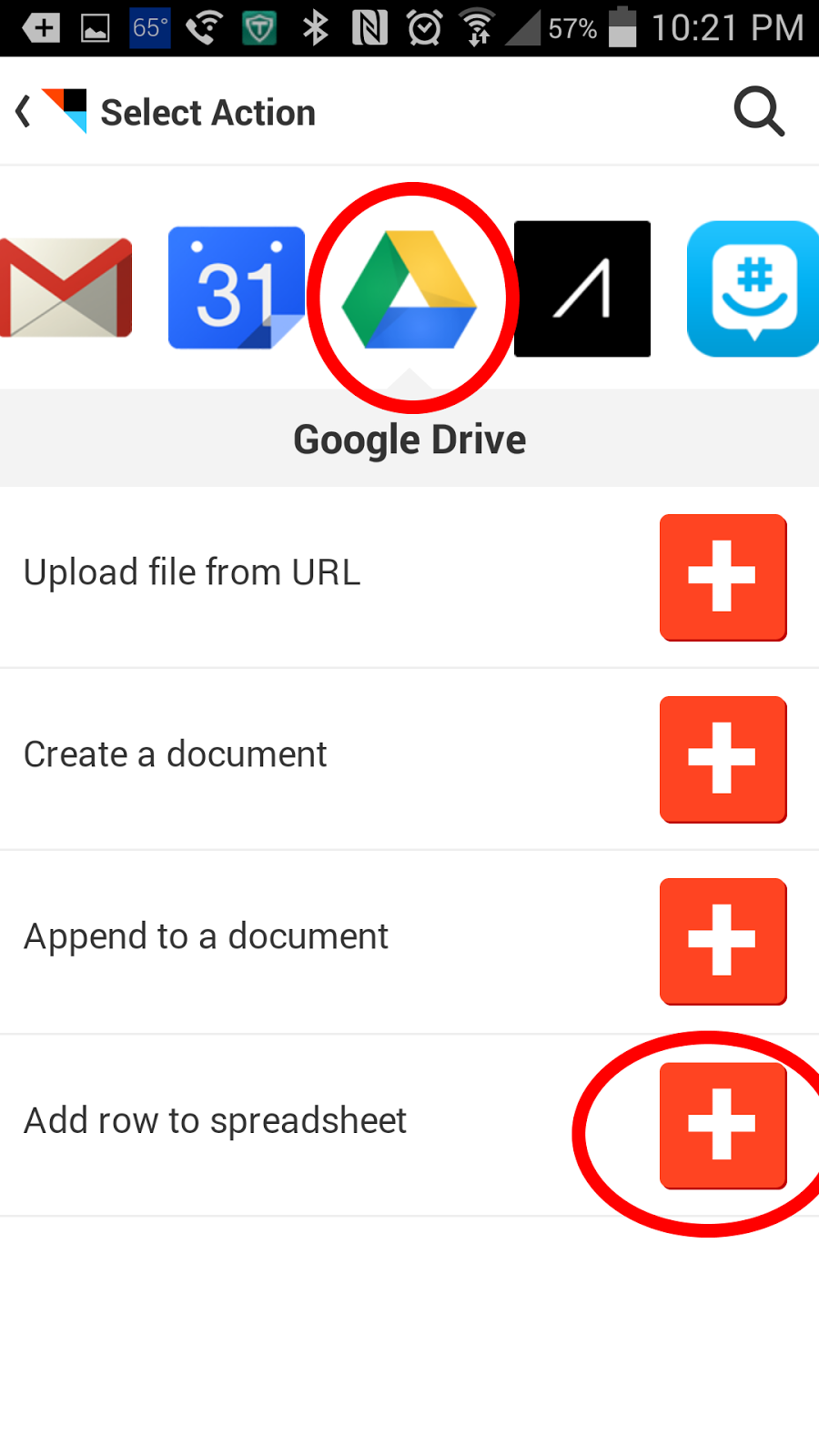
What this will do is create a new spreadsheet named "Phone call" in your Google Drive account in a folder called IFTTT. It will have four columns that state when the phone call was made, what number was called, who was called, and how long it lasted. You can tweak some of this in the edit recipe menu.

How is this useful for an attorney? If you make several phone calls on the road, you can quickly enter your time into your billing or case management software by referencing a single spreadsheet. The only thing you would have to do is remember what the substance of the call was. This is much easier than going through your phone's call log an into each entry to see when the call occurred and how long it lasted for billing purposes.
Friday, August 15, 2014
YEAH, YOU SHOULD PROBABLY USE 2-STEP VERIFICATION WITH GOOGLE
If you haven't noticed by now, I am a Google fanboy. I'm not ashamed of that; I openly admit it. Yet, in those moments when I think about it closely, it is amazingly scary the amount of information Google knows about me and the extent to which I trust Google.
It keeps track of some of my passwords via Chrome. Google's Android OS runs my phone and is synced with my Google account. My email, my documents, and who knows how much else are all with Google in one way or another it seems.
To put it mildly, if my Google account were hacked, the amount of damage that could be done is downright scary. I imagine this is the case for nearly anyone with a Gmail account or using any of Google's apps or who has an Android phone.
With that amount of exposure possible, I think it makes sense to use Google's 2-step verification. Basically, to access my Google account on a non-trusted device (think trying to access it at the public library), not only will I have to put in my Google password, but then I will get a text message on my phone with a verification code.
Unless someone has both my password and my phone, they will be unable to get into my account. Moreover, if someone does guess my Google password, I'll get the text message and know that someone's trying to get into my account.
Yeah, it might be some initial work setting up and a bit of a pain when trying to access your account in new locations, but the peace of mind that comes with the increased security is more than worth it.
You can set up 2-Step verification for your Google account here.
It keeps track of some of my passwords via Chrome. Google's Android OS runs my phone and is synced with my Google account. My email, my documents, and who knows how much else are all with Google in one way or another it seems.
To put it mildly, if my Google account were hacked, the amount of damage that could be done is downright scary. I imagine this is the case for nearly anyone with a Gmail account or using any of Google's apps or who has an Android phone.
With that amount of exposure possible, I think it makes sense to use Google's 2-step verification. Basically, to access my Google account on a non-trusted device (think trying to access it at the public library), not only will I have to put in my Google password, but then I will get a text message on my phone with a verification code.
Unless someone has both my password and my phone, they will be unable to get into my account. Moreover, if someone does guess my Google password, I'll get the text message and know that someone's trying to get into my account.
Yeah, it might be some initial work setting up and a bit of a pain when trying to access your account in new locations, but the peace of mind that comes with the increased security is more than worth it.
You can set up 2-Step verification for your Google account here.
Thursday, August 14, 2014
SWITCHING USER ACCOUNTS IS NOW EASIER IN CHROME CANARY
In case you're not aware, there are multiple versions of the Chrome browser available for use on your desktop or laptop. There is the completely stable version of Chrome, a Beta version that I've found to be very stable, and the Canary version, which you can think of as the Alpha version.
The advantage to using the Beta or Canary version is that you get some of the upcoming features in Chrome early and can provide feedback on their development. The trade off is that sometimes the features aren't fully debugged, and so, the browser might not always be reliable. There have been updates with Chrome Canary that I can hardly use it and have to wait for the next update.
However, I like to see what is coming and trying out stuff early. And the thing I noticed for the first time today (though it could have happened a few days ago and I never saw it) was the addition of a button in the top right that is supposed to make switching users easier.


The advantage to using the Beta or Canary version is that you get some of the upcoming features in Chrome early and can provide feedback on their development. The trade off is that sometimes the features aren't fully debugged, and so, the browser might not always be reliable. There have been updates with Chrome Canary that I can hardly use it and have to wait for the next update.
However, I like to see what is coming and trying out stuff early. And the thing I noticed for the first time today (though it could have happened a few days ago and I never saw it) was the addition of a button in the top right that is supposed to make switching users easier.
When you click on it, you can add your other users' accounts, or perhaps you can have a work and personal account, which is why I'm so excited about this.
When you switch to the other user, it then opens a new window with the other user running, thus allowing you to have multiple instances of Chrome running but with different users. And lest you get confused as to which account is in which window, the task bar will let you see the difference.
At any rate, for those who have a work and personal gGoogle account, or where multiple users are using the same computer, this is a welcome addition to Chrome. Let's hope it makes it to the Beta and Release versions soon.
Friday, June 27, 2014
TALKING TO MY PHONE EVEN MORE
I like talking to my phone. A lot. I ask it about the weather, to text the wife that I'm on my way home, to call people, keep track of notes, add appointments, and all sorts of things. It was mildly annoying to do so originally because I had to double click the home button to launch Google's voice search. Then, I got the Google Experience Launcher, which meant I only had to say "Ok, Google" while my phone was unlocked and not in an app.
Now, thanks to the newest update to Google voice search, I can just say "Ok, google" even from the lock screen. Even if I'm in an app. Even if the screen is off but the phone is plugged in. Just say the magic words and I hear that magic binging noise, ready to answer my every question.
Yes, yes, I know that the Moto X has had this capability for a little while now. I'm over that. We're all getting it now, and I hope everyone enjoys it.
To enable, open the "Google" app, which is where you find your Google Now cards. Click on the menu button, go to setting, then voice. Then, click on the "Ok Google" detection where you can adjust the settings.
Now, be warned, enabling this means your phone is going to be listening to you. Most of the time in fact. And it's going to send information to Google about your searches and voice. For the privacy concerned, you should be aware of this. However, Google already knows a lot about me since I use an Android phone, Gmail, and most of their other services. As for me, I enabled it all as soon as possible and have been loving it.
Friday, June 20, 2014
LANE NOTIFICATION - A GREAT IMPROVEMENT TO GOOGLE MAPS
I'm guessing I'm a little late to the party on this one, but while driving to a hearing yesterday, I noticed Google maps looked a little different. It now shows which lane you should be getting into.

To be honest, this little change is quiet big for me. I often get frustrated not knowing which lane to be in on the highway when I'm going to unfamiliar places. This takes the guess work out of it. Yet another reason Google maps is the way to go for your navigation needs.
To be honest, this little change is quiet big for me. I often get frustrated not knowing which lane to be in on the highway when I'm going to unfamiliar places. This takes the guess work out of it. Yet another reason Google maps is the way to go for your navigation needs.
Friday, June 6, 2014
NOVA LAUNCHER NOW GETS MY VOTE
Ok, time for me to once again be a Google/Android fan boy. I've been using a Samsung Galaxy for the last year, and for the most part, I've liked it. The Touchwiz system is fine, though I found it a bit sluggish at times.
A few months ago, though, I sideloaded the Google Experience Launcher ("GEL"), and it revolutionized how I use my phone. First, the ability to just say, "Ok, Google" on the home screen and be able to launch a Google voice search was great. After installing GEL, I found myself talking to my phone. A lot. And it has been great.
The second thing that I really appreciated about the GEL was the ability to swipe from the left on the home screen and see all of my Google Now cards. There isn't a widget that gives the full Google Now cards like GEL offers. I found myself constantly swiping from the left.
Then, Nova Launcher had to come along and make things difficult. It offers a free version. It has the KitKat icon set. It is more customizable than GEL in my opinion. As of a couple days ago, it now let's you say "Ok, Google" from the home screen to launch voice search. You no longer have to be rooted to get full use of it. It displays more icons in the app drawer than the GEL.
I've read reports suggesting that Nova Launcher can be tougher on a battery, but it's too soon for me to know about that. The biggest down side so far: no swiping from the right to access Google Now cards. And, when I first installed and started playing with it, this was really almost a deal breaker for me. I really like the look and settings that can be tweaked in Nova Launcher, but the lack of the swiping to Google Now was tough.
Then, I realized that the Galaxy has a menu key still. I was able to set it in the Nova Launcher settings to open the Google Now cards on a long press.
I like the GEL, and I would recommend it to anyone. However, at least for now, I'm going to be using Nova Launcher. The ability to tweak settings, the icons, the app drawer layout, they all make Nova Launcher my launcher of choice for now.
A few months ago, though, I sideloaded the Google Experience Launcher ("GEL"), and it revolutionized how I use my phone. First, the ability to just say, "Ok, Google" on the home screen and be able to launch a Google voice search was great. After installing GEL, I found myself talking to my phone. A lot. And it has been great.
The second thing that I really appreciated about the GEL was the ability to swipe from the left on the home screen and see all of my Google Now cards. There isn't a widget that gives the full Google Now cards like GEL offers. I found myself constantly swiping from the left.
Then, Nova Launcher had to come along and make things difficult. It offers a free version. It has the KitKat icon set. It is more customizable than GEL in my opinion. As of a couple days ago, it now let's you say "Ok, Google" from the home screen to launch voice search. You no longer have to be rooted to get full use of it. It displays more icons in the app drawer than the GEL.
I've read reports suggesting that Nova Launcher can be tougher on a battery, but it's too soon for me to know about that. The biggest down side so far: no swiping from the right to access Google Now cards. And, when I first installed and started playing with it, this was really almost a deal breaker for me. I really like the look and settings that can be tweaked in Nova Launcher, but the lack of the swiping to Google Now was tough.
Then, I realized that the Galaxy has a menu key still. I was able to set it in the Nova Launcher settings to open the Google Now cards on a long press.
I like the GEL, and I would recommend it to anyone. However, at least for now, I'm going to be using Nova Launcher. The ability to tweak settings, the icons, the app drawer layout, they all make Nova Launcher my launcher of choice for now.
Thursday, May 22, 2014
GOOGLE NOW CAN SET A TIMER, FINALLY
As you know, I'm a huge fan of the Android operating system and Google in general. In particular, I love Google Now. The cards telling me about traffic issues, keeping me up to date when websites I frequent are updated, and reminding me of where I parked are great. But, one of my (many) other hobbies is cooking and smoking meat.
In the past, I would tell Google Now to set a timer for 15 minutes, and it would actually set an alarm for 15 minutes in the future. Fine, it worked, but it wasn't really a timer. Moreover, as a result of setting all of these alarms, my list of alarms in the clock app would be incredibly lengthy.
Now, when you ask Google Now to set a timer, it actually does just that. It uses the clock's timer feature and sets the timer through that.
Yes, this might seem like a minor thing. But, for me, and I'm sure for others, this is a very welcome change. And more to the point, it makes me happy to see Google constantly trying to improve what they do.
H/T Droid Lawyer
In the past, I would tell Google Now to set a timer for 15 minutes, and it would actually set an alarm for 15 minutes in the future. Fine, it worked, but it wasn't really a timer. Moreover, as a result of setting all of these alarms, my list of alarms in the clock app would be incredibly lengthy.
Now, when you ask Google Now to set a timer, it actually does just that. It uses the clock's timer feature and sets the timer through that.
Yes, this might seem like a minor thing. But, for me, and I'm sure for others, this is a very welcome change. And more to the point, it makes me happy to see Google constantly trying to improve what they do.
H/T Droid Lawyer
Tuesday, February 18, 2014
USE YOUR CHROME BROWSER TO SET A TIMER
Lately, I've been trying to set aside set periods of time to devote to tasks. For example, I might only want to spend 10 minutes reading blog posts on Feedly. To keep track of time, I could get a kitchen timer or pull out my phone. Or, I could just open a tab up in my chrome browser and in the address bar, type "Set a timer for 10 minutes". This will open up a countdown timer, and as long as I don't close the page, will sound an alarm after 10 minutes.
Not earth shattering stuff, but sometimes these simple things are very convenient.
Thursday, January 16, 2014
GOOGLE NOW FINALLY ON THE DESKTOP... SORTA
I've previously discussed how much I like Google Now on my smart phone. Having useful information contained in the Now cards at my fingertips is something I like. And I don't mind that it knows all there is to know about me. I like it popping up notifications that packages have been shipped and reminding me of hearings.
Up until now, it has only been available for the phone; you could not get your cards on the desktop. As of today, those using Chrome Canary can see their Google Now cards on their desktops. Ars Technica has instructions for turning them on here.
It might still be a while before this feature comes to the stable version of Chrome (Canary is billed as the developer/early adopter version and "can be prone to breakage"). This is a step I've been waiting for for a while now, and I'm excited for it to make it to all versions of Chrome.
Up until now, it has only been available for the phone; you could not get your cards on the desktop. As of today, those using Chrome Canary can see their Google Now cards on their desktops. Ars Technica has instructions for turning them on here.
It might still be a while before this feature comes to the stable version of Chrome (Canary is billed as the developer/early adopter version and "can be prone to breakage"). This is a step I've been waiting for for a while now, and I'm excited for it to make it to all versions of Chrome.
Monday, January 6, 2014
GOOGLE VOICE SEARCH ON THE DESKTOP
I've been using Google Now and Google's voice search on my phone for quite some time. However, I've never really used it much on the desktop. Since I've been dictating more using either Dragon Dictate or Windows Speech Recognition, I find that I have my headset on more often than not while I'm at my desk. Thus, it is much simpler for me to actually use Google's voice search on the desktop when I'm using Chrome as my browser.
There are a number of ways to start a Google Voice search. All of them require that you be on a Google search page. Since I'm always using Chrome, I usually just have to open a new tab which takes me to a page with a Google search bar on it.
From there, you can click on the microphone on the right side of the search bar and then speak your Google search.

There are a number of ways to start a Google Voice search. All of them require that you be on a Google search page. Since I'm always using Chrome, I usually just have to open a new tab which takes me to a page with a Google search bar on it.
From there, you can click on the microphone on the right side of the search bar and then speak your Google search.
I prefer just to use the keyboard shortcut in chrome to start a voice search: ctrl+shift+period. This automatically starts the search.
Lastly, Google has released an extension called Google Voice Search Hotword (Beta). It is supposed to allow you to just say "Ok, Google" like you do on your phone and open the voice search. However, I have not been able to get it to work on my computer, so I am unable to weigh in on how well it actually works.
Using your voice to control the computer is not yet for everyone, but it is starting to come along. Features like Google Voice Search are likely the beginning phases of this technology.
Tuesday, December 17, 2013
GOOGLE TIPS WILL SHOW YOU WHAT GOOGLE OFFERS
I'm a huge fan of Google and the Android operating system. I have played around with many of Google's apps and and regularly use a number of them. Yet, things change regularly and new features are added frequently and it is helpful to have a place to see what all Google currently offers.
Whether you are new to what Google offers or already know a lot about Google, it is worth checking out Google Tips. Here, both new and old users are likely to learn tips and tricks for how to get the most out of what Google offers.
h/t The Droid Lawyer
Whether you are new to what Google offers or already know a lot about Google, it is worth checking out Google Tips. Here, both new and old users are likely to learn tips and tricks for how to get the most out of what Google offers.
h/t The Droid Lawyer
Subscribe to:
Posts (Atom)